
Introduction to Adobe Illustrator
Adobe Illustrator is one of the most widely used vector graphic design tools in the world. Whether you want to design logos, create illustrations, make social media graphics, or build professional branding materials, Illustrator offers unmatched precision and scalability. Unlike raster-based programs, Illustrator works with vector paths, meaning your artwork can be resized infinitely without losing quality—making it the top choice for graphic designers, agencies, and creative professionals globally.
For beginners stepping into the world of digital design, Illustrator provides a structured, tool-based environment that is easy to learn yet powerful enough for advanced design projects. With its growing demand in Pakistan’s digital industry, mastering Illustrator can open doors to career growth, freelance opportunities, and high-income creative roles.
What Makes Illustrator Essential for Designers?
Adobe Illustrator stands out because it enables designers to create clean, sharp, and scalable graphics suitable for both print and digital platforms. Its versatility makes it essential for:
- Creating logos and branding assets
- Designing professional illustrations and icons
- Developing UI mockups, infographics, and layouts
- Preparing print-ready materials such as brochures, business cards, and flyers
The biggest advantage is the vector-based workflow, which ensures that designs remain crisp even when scaled to billboard size. Illustrator also integrates smoothly with Adobe Photoshop, InDesign, and XD, making it an indispensable part of the creative workflow for designers working in agencies, studios, and corporate settings.
Additionally, Illustrator’s powerful tools—such as the Pen Tool, Shape Builder, Type Tool, and Pathfinder—give designers complete control over their artwork. This high degree of precision makes it the preferred software for branding, logo design, and professional illustration projects.
Who Should Learn Adobe Illustrator? (Students, Freelancers, Professionals)
Adobe Illustrator is not limited to graphic designers; it benefits a wide range of learners and professionals:
Students
Students interested in creative fields, especially those preparing for diplomas or BS degree programs, can use Illustrator to build strong design foundations. It also prepares them for higher-level design courses offered in technical and creative programs.
Freelancers
Freelancers offering services like logo design, social media content creation, or illustration will find Illustrator essential. With the rising demand for vector graphics, freelancers in Pakistan and globally can tap into high-paying opportunities on marketplaces like Fiverr and Upwork.
Professionals
Professionals working in marketing, branding, digital media, advertising, UI/UX, and print industries can enhance their careers by learning Illustrator. The software helps them develop stronger visuals, design campaigns more effectively, and create assets without relying on external agencies.
Whether you want to pursue a creative career, build a freelance business, or simply polish your design skill set, Adobe Illustrator is a powerful tool that can elevate your work to professional standards.
Getting Started With Adobe Illustrator Interface
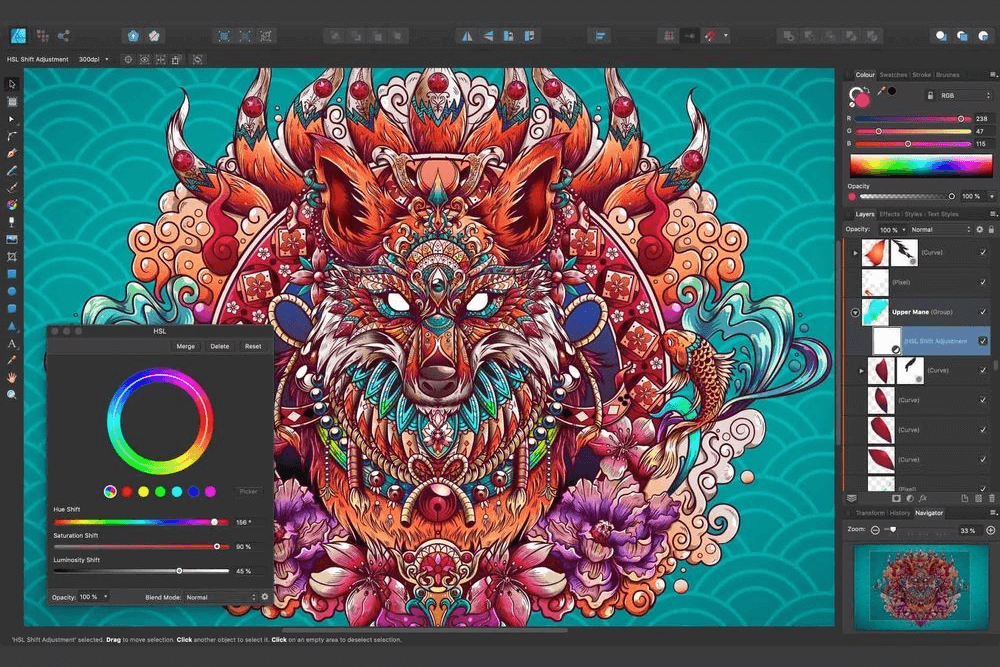
Before exploring the tools, it’s important to understand the Adobe Illustrator workspace. A well-organized workspace helps beginners navigate easily and improves productivity as you start working on real projects. Illustrator offers a clean, customizable interface designed to support both simple and advanced workflows.
Workspace Overview (Toolbar, Panels, Artboards)
The Illustrator workspace consists of four main components: the Toolbar, Menu Bar, Panels, and Artboard area. Each part plays a significant role in how you create and manage your designs.
Toolbar
Located on the left, the Toolbar contains all your essential tools—Selection Tools, Pen Tool, Type Tool, Shape Tools, Brush Tool, and more. You’ll frequently use this area to choose the tool needed for drawing, selecting, editing, or modifying objects. Illustrator allows you to customize the toolbar to match your workflow, making it easier for beginners to keep only the tools they need.
Panels
On the right side, you’ll find Panels such as Layers, Properties, Color, Swatches, Stroke, Pathfinder, and many others. These panels give you control over how objects appear, behave, and are organized in your document. For example, the Layers Panel helps you manage different elements of your design without confusion, while the Color and Swatches Panels help you create consistent palettes.
Artboards
An artboard is your main workspace—the canvas where you create your designs. Illustrator allows you to use multiple artboards within a single document, which is particularly useful when designing logo variations, social media posts, or branding assets. Each artboard acts like a separate page, helping you organize content efficiently.
Understanding where these elements are located—and how to use them—will make your learning experience smoother and your design workflow faster.
Setting Up Your First Document
Creating your first document in Illustrator is simple, but choosing the correct settings is important for producing high-quality designs.
When starting a new project, go to File → New, and Illustrator will present a range of templates for web, print, mobile, and custom sizes. Some key settings to consider include:
Document Size
Choose dimensions based on your project—for instance:
- 1080×1080 px for social media posts
- A4 for print designs
- 1920×1080 px for web layouts
Units
Use pixels for digital designs and inches or millimeters for print projects. This ensures accuracy when exporting or printing.
Color Mode
Select RGB for digital graphics and CMYK for print. This helps maintain color accuracy across different mediums.
Artboards
You can create multiple artboards at the start or add more later using the Artboard Tool. Beginners often start with one to keep things simple, but multi-artboard documents are helpful when working on branding kits or reports.
Once your document is set up, Illustrator creates a clean workspace where you can begin experimenting with shapes, text, and tools. Learning how to set up files properly is an essential step toward creating professional-quality designs.
Essential Adobe Illustrator Tools Every Beginner Must Learn
Adobe Illustrator is packed with powerful tools that help beginners create professional designs with precision. Understanding how these tools work will give you the confidence to sketch, draw, edit, and refine graphics with ease. Below is a beginner-friendly guide to the most important tools every new designer must learn.
Selection Tools (Selection & Direct Selection Tool)
The Selection Tools are the foundation of Illustrator. They help you pick, move, resize, or adjust objects on your artboard.
Selection Tool (V)
The Selection Tool allows you to select entire objects or groups. It is used for:
- Moving shapes
- Scaling objects
- Rotating entire elements
- Selecting grouped items
For beginners, this is the first tool you will use when working with any element on the artboard.
Direct Selection Tool (A)
This tool is more advanced and gives you control over the finer details of an object. It allows you to select and edit:
- Individual anchor points
- Specific path segments
- Curves and shapes within an object
If you want to modify the corners of a rectangle, adjust curves on an illustration, or refine the shape of a logo, the Direct Selection Tool is essential.
Pen Tool – Mastering Paths & Anchor Points
The Pen Tool (P) is one of the most powerful yet challenging tools for beginners. It lets you create custom shapes and illustrations through anchor points and curves.
What You Can Do With the Pen Tool:
- Draw precise straight and curved lines
- Create logos and icons
- Design custom shapes and illustrations
- Edit and refine paths
The Pen Tool works by placing anchor points, which Illustrator connects with straight or curved lines. Mastering it will significantly improve your illustration and logo design skills. With practice, you’ll learn how to create smooth curves using handles and adjust paths effortlessly.
Shape Tools (Rectangle, Ellipse, Polygon, Star)
Illustrator provides built-in shape tools that allow you to create basic graphics quickly.
Rectangle Tool (M)
Ideal for creating boxes, banners, backgrounds, and layout elements.
Ellipse Tool (L)
Used to make circles, badges, icons, and rounded graphics.
Polygon Tool
Perfect for geometric shapes like triangles, hexagons, or custom polygon designs.
Star Tool
Useful for badges, logos, and decorative graphics.
Beginners often start with shape tools because they’re simple and help build an understanding of vector construction.
Type Tool – Working With Text
The Type Tool (T) is essential for working with typography. Illustrator gives you full control over text, making it perfect for branding, posters, social media posts, and marketing materials.
Key Functions Include:
- Adding and formatting text
- Adjusting tracking, kerning, and leading
- Converting text to outlines for custom shaping
- Using text effects like warp, curve, and distort
Whether you’re designing a logo with stylized text or creating a flyer, mastering the Type Tool is crucial.
Brush & Pencil Tools – Freehand Drawing
These tools are perfect for creative beginners who enjoy sketching or illustration.
Brush Tool (B)
Creates strokes that mimic painting or calligraphy. Great for:
- Decorative elements
- Artistic illustrations
- Hand-drawn effects
Pencil Tool (N)
Allows smooth freehand drawing, similar to drawing with a real pencil. Ideal for creating:
- Sketch-style illustrations
- Custom icons
- Hand-drawn shapes
Combined with the Smooth Tool, you can refine rough paths for cleaner artwork.
Gradient & Eyedropper Tools – Colors and Blending
Color plays a major role in design, and these tools help achieve smooth, professional color transitions.
Gradient Tool (G)
Used to create soft color blends in objects. You can apply:
- Linear gradients
- Radial gradients
- Freeform gradients (for detailed shading)
Gradients make your designs visually appealing and add depth to flat illustrations.
Eyedropper Tool (I)
Allows you to pick and apply colors from any object on your artboard. This tool ensures consistent color usage across your design.
Shape Builder & Pathfinder Tools – Combining Shapes
These tools help create complex designs from simple shapes.
Shape Builder Tool (Shift + M)
Lets you merge, remove, or reshape overlapping shapes interactively. It’s extremely useful for logo design and geometric illustrations.
Pathfinder Panel
Contains multiple options for combining shapes such as:
- Unite
- Minus Front
- Intersect
- Exclude
These options help you generate clean, professional vector shapes effortlessly.
Fill, Stroke & Color Tools
These tools control the appearance of your objects.
Fill Color
Adds color inside a shape.
Stroke Color
Adds an outline to your shape. You can adjust stroke:
- Thickness
- Style (dashed, dotted)
- Corners and caps
Color Panel & Swatches
Help you maintain consistent colors across your artwork—especially important for branding and print materials.
Zoom, Hand & Rotate Tools
These tools make navigating your workspace much easier.
Zoom Tool (Z)
Zoom in and out for detailed editing or overall viewing.
Hand Tool (H)
Lets you move around the artboard without selecting or altering objects.
Rotate Tool (R)
Allows you to rotate an object or group precisely, which is useful in logo design, icons, and patterned layouts.
By understanding and practicing these essential tools, beginners gain the confidence to create any type of graphic—from logos to professional illustrations.
Understanding Layers and Artboards
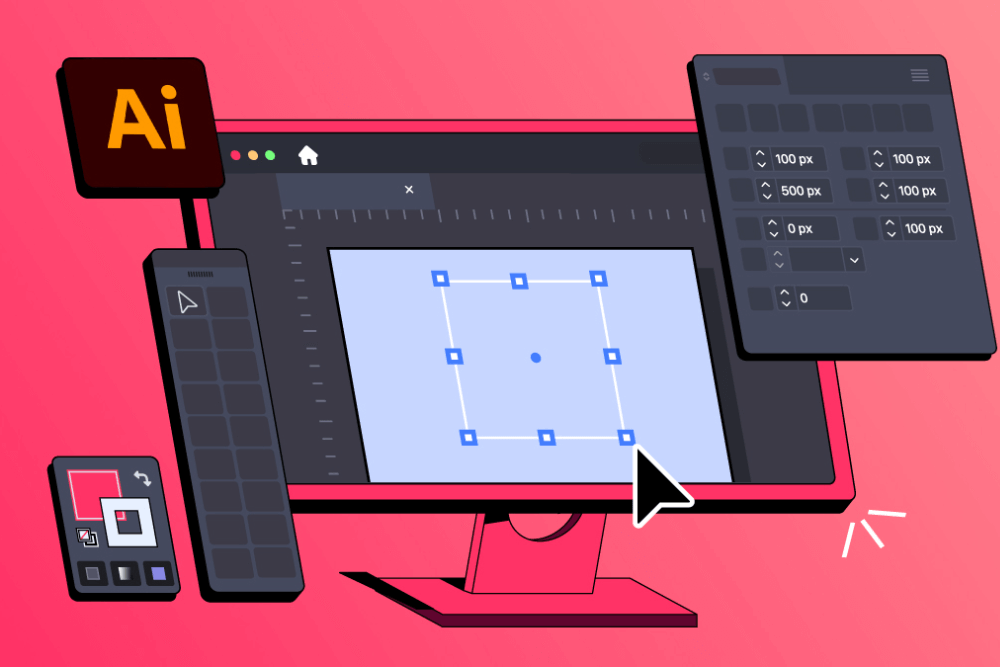
Layers and artboards are two fundamental components that help keep your Illustrator projects organized, efficient, and easy to edit. Whether you’re designing a simple logo or a multi-page branding kit, understanding how these two features work will greatly improve your workflow.
How Layers Work in Illustrator
Layers in Illustrator function like transparent sheets stacked on top of each other. Each layer can contain multiple objects, shapes, text elements, and illustrations. By separating elements into layers, beginners can work more efficiently and avoid accidental edits.
Why Layers Are Important:
- They help organize complex designs
- They allow you to lock, hide, and isolate elements
- They make editing and revisions much easier
- They support a nondestructive workflow—meaning your original artwork stays safe
For example, when designing a logo, you might place text on one layer, icons on another, and background shapes on a separate layer. This keeps your artwork clean and manageable.
Key Layer Functions:
- Lock Layer: Prevents unwanted changes
- Hide Layer: Makes elements invisible temporarily
- Group Elements: Helps you move or edit sections together
- Rename Layers: Keeps your file organized, especially for large projects
Mastering layers early ensures smoother design processes, especially when working on client files or collaborative projects.
Managing Multiple Artboards for Projects
Artboards are like individual canvases within your document. Illustrator allows you to create up to 1,000 artboards, making it perfect for multi-page designs or variations of the same project.
Uses of Multiple Artboards:
- Creating branding kits (logo variations, color versions, layouts)
- Designing social media posts in bulk
- Creating icons or illustration sets
- Preparing different sizes of the same design for print or digital use
With the Artboard Tool, you can add, duplicate, resize, or rearrange artboards easily. Each artboard can have its own dimensions, allowing you to design for web, print, and mobile all in one file.
Best Practices for Artboard Management:
- Name artboards clearly (e.g., “Logo Main,” “Facebook Post,” “Business Card Front”)
- Align artboards using the Artboards Panel
- Use consistent spacing between artboards for neat organization
- Duplicate artboards to maintain consistency across variations
By effectively using artboards, beginners can streamline their design workflow and deliver well-organized, professional files to clients or instructors.
Practical Uses of Illustrator Tools for Beginners
Once beginners understand the fundamental tools in Adobe Illustrator, the next step is learning how to apply them in real-world design tasks. Illustrator is widely used across industries because it allows users to create high-quality vector graphics suitable for digital, print, and branding purposes. Here are some practical applications beginners can start working on right away.
Designing Logos
Logo design is one of the most popular uses of Adobe Illustrator because vector graphics can be scaled infinitely without losing quality. Beginners can create simple yet professional logos using basic shapes, the Pen Tool, and the Shape Builder Tool.
How Illustrator Helps in Logo Design:
- Shape Tools allow you to build simple geometric logos
- The Pen Tool is perfect for custom icons or letterforms
- Pathfinder and Shape Builder tools help combine or subtract shapes
- Type Tool helps you pair fonts for text-based logos
- Color tools enable you to create brand palettes
Even a beginner can design a clean, modern logo by experimenting with shapes, adjusting anchor points, and applying simple color combinations.
Creating Social Media Graphics
With the rise of digital marketing, Illustrator has become a powerful tool for creating engaging social media content. Its artboard system makes it easy to design multiple posts in one document.
Common Social Media Graphics You Can Create:
- Instagram posts and stories
- Facebook ads
- YouTube thumbnails
- TikTok cover graphics
- Promotional banners
Beginners can use:
- The Type Tool for captions and call-to-action text
- The Rectangle and Ellipse Tools for layout design
- The Gradient Tool for modern backgrounds
- Icons created with the Pen or Shape Tools
Illustrator also allows you to export designs in optimized formats for each platform.
Making Illustrations & Icons
Illustrator is a favorite among digital artists and UI designers because it produces clean, scalable illustrations. Beginners can start creating simple drawings using the Brush, Pencil, and Pen Tools.
Popular Illustration Tasks for Beginners:
- Flat-style character illustrations
- Simple vector scenes
- Mobile app icons
- Line icons for websites
- Decorative elements for posters
Using layers helps keep illustration elements organized, while the Color and Swatches panels help maintain consistent color themes.
Basic Print-Ready Artwork
Illustrator also supports print design, making it ideal for creating posters, flyers, brochures, stickers, and business cards. It provides precise control over layout, bleed, margins, and CMYK colors—crucial for print accuracy.
Beginner-Friendly Print Projects:
- Business cards
- Event flyers
- Custom stickers
- Simple brochures
- Certificates
Key tools beginners use for print design include:
- Artboards for multiple page layouts
- Type Tool for professional typography
- Layers for organizing content
- The Align and Transform tools for perfect positioning
By exporting artwork in PDF or EPS format, beginners can easily hand off print-ready files to local printing shops.
Tips to Practice and Improve Your Illustrator Skills
Improving your Adobe Illustrator skills takes consistent practice, experimentation, and learning from mistakes. Whether you’re a student, freelancer, or beginner-level designer, these tips will help you build confidence and sharpen your creative abilities.
Daily Practice Ideas for Beginners
Practicing a little each day can dramatically improve how quickly you learn Illustrator. You don’t need to work on complex projects—simple exercises can help you understand tools, shortcuts, and workflows.
1. Recreate Simple Logos
Choose minimalist logos from brands like Nike, Apple, or Airbnb and try recreating them using the Pen, Shape, and Selection tools. This builds precision and strengthens shape manipulation skills.
2. Draw Basic Objects Using the Pen Tool
Practice tracing simple objects such as leaves, cups, shapes, or icons. This helps you master anchor points and curves, which are essential for illustration and logo design.
3. Make Daily Social Media Posts
Create one new design every day, such as an Instagram post, quote graphic, or banner. Use different colors, typography, and layouts to experiment with styles.
4. Follow Design Challenges on Behance or Dribbble
Daily or weekly design prompts push you to think creatively and try new techniques.
5. Experiment With Gradients and Color Palettes
Try creating gradient backgrounds or applying color themes to shapes and icons. This improves your understanding of Illustrator’s color tools.
6. Practice With Free Icon Sets
Download icon sets and try recreating them with basic shapes. This enhances your precision and helps you understand geometric design.
7. Watch One Tutorial a Day
Platforms like YouTube, Skillshare, and Adobe’s own tutorials are great for learning new techniques quickly.
Consistent practice builds muscle memory and helps you master the software faster than you think.
Common Mistakes to Avoid
Beginners often struggle because they unknowingly develop bad design habits. Avoiding these mistakes will save you hours of frustration and help you produce cleaner, more professional work.
1. Ignoring Layers
Working on a single layer becomes chaotic. Always organize your artwork using properly named layers.
2. Overusing the Pen Tool Without Understanding Anchor Points
Many beginners place too many anchor points. Use fewer, cleaner points to create smooth curves.
3. Not Using Shape Builder or Pathfinder
Manually drawing complex shapes wastes time. Use Illustrator’s shape tools to combine and refine shapes efficiently.
4. Using Random Colors Without a Palette
Poor color choices weaken your designs. Use predefined color palettes to maintain harmony.
5. Stretching Text or Shapes Improperly
Avoid dragging objects without holding Shift—this distorts proportions and makes designs look unprofessional.
6. Ignoring Shortcuts
Keyboard shortcuts significantly speed up your workflow. Learn a few every week.
7. Exporting in the Wrong Format
For digital work, use PNG or JPG. For print, use PDF or EPS with CMYK color mode. Choosing the wrong format affects quality.
8. Not Zooming In to Refine Details
Small mistakes become obvious in final designs. Zoom in frequently to clean edges and paths.
By being aware of these common pitfalls, beginners can improve their workflow and create high-quality artwork more consistently.
Career Opportunities After Learning Adobe Illustrator
Adobe Illustrator is one of the most in-demand design tools across multiple industries. Whether you aim to work in an agency, build a freelance career, or start your own design brand, mastering Illustrator opens the door to countless creative pathways. Here are some of the most promising career opportunities for beginners who develop strong Illustrator skills.
Graphic Designer
Graphic design is one of the most popular career choices for individuals skilled in Illustrator. Almost every organization—from startups to large corporations—requires visual content for branding, marketing, and communication.
What You Can Do as a Graphic Designer:
- Create logos and brand identities
- Design brochures, flyers, posters, and banners
- Develop website graphics and social media creatives
- Work on packaging designs and stationery
Graphic designers are employed in advertising agencies, IT companies, media houses, e-commerce businesses, and educational institutions. With Illustrator expertise, beginners can enter the field as junior designers and build their way up to brand and creative leads.
UI/UX Designer
UI/UX designers focus on designing user-friendly interfaces for mobile apps, websites, and software. Illustrator plays a key role in creating icons, wireframes, layout elements, and vector illustrations used in digital interfaces.
Illustrator Tasks for UI/UX Designers:
- Designing icons and web elements
- Creating wireframes and mockups
- Building vector-based illustrations for apps
- Designing interface components
While tools like Figma and Adobe XD dominate UI/UX prototyping, Illustrator remains essential for creating clean, scalable assets.
Illustrator & Digital Artist
Many individuals pursue careers as illustrators or digital artists, working in creative industries such as publishing, animation, entertainment, and gaming. Illustrator is widely used for producing polished vector art.
Where Digital Artists Work:
- Book and magazine illustration
- Cartoon and character design
- Game assets and environment design
- Animation studios
- Advertising and branding agencies
- NFT and digital art platforms
This career is ideal for creative individuals who enjoy drawing, storytelling, and visual expression.
Freelancing Opportunities in Pakistan & Globally
Freelancing is one of the biggest career paths for Illustrator learners, especially for beginners who want flexible earning opportunities.
Popular Freelance Services You Can Offer:
- Logo and brand identity design
- Social media posts and ads
- Custom illustration sets
- Packaging design
- Flyers, posters, and marketing graphics
- Business card and stationery design
Platforms like Upwork, Fiverr, Freelancer.com, Behance, and Dribbble allow designers to earn from international clients. Many Pakistani freelancers successfully earn from $300 to $2,000+ per month offering Illustrator-driven design services.
Local opportunities in Pakistan include:
- Working with digital marketing agencies
- Designing for schools, colleges, and institutes
- Creating graphics for small businesses and startups
- Offering branding services to local brands
With a strong portfolio and consistent practice, Illustrator opens doors to both local and global career growth.
Not really. Illustrator may feel complex at first, but once you learn the basic tools — shapes, pen tool, layers, and text — it becomes much easier. Consistent practice is the key.
You don’t need a high-end device, but a system with at least 8GB RAM, a good processor, and SSD storage will run Illustrator smoothly.
Yes. Illustrator is the preferred software for logos because it creates vector graphics, which stay sharp at any size.
Absolutely. You can design posts, banners, icons, and branding graphics easily using artboards and vector tools.
Most beginners can learn the basics in 2–4 weeks with daily practice. Mastering advanced tools may take a few months.
Conclusion & Strong Call-to-Action
Adobe Illustrator is one of the most powerful tools for creating professional graphics, illustrations, icons, and brand designs. With its simple tools, flexible vector system, and endless creative possibilities, beginners can quickly build strong design skills that open doors to freelancing, jobs, and digital careers.
If you’re just starting, focus on learning the essential tools, practice daily, and don’t be afraid to experiment — every great designer begins with the basics. With consistency, you can confidently design logos, social media posts, illustrations, and print-ready artwork in no time.
Ready to start your design journey?
Take the next step and enroll in a Graphic Design or Adobe Illustrator course today. Boost your creativity, build your portfolio, and start earning with your design skills!